


Day two of the course is all about the ✨ aesthetics ✨ . Well, once we get some business out of the way.
Here’s what we’ll cover:
- Bookmarking & logging into your WordPress dashboard
- WordPress dashboard basics
- Choosing a good theme for your blog
- Customizing your blog’s appearance
Accessing Your WordPress dashboard
To get back to your WordPress dashboard we ended on last time, click here to log in to Bluehost.

Then, click “Edit site” on your Website.

Once you’re here, you’ll probably want to bookmark this page and add it to your bookmarks bar so you don’t have to go through Bluehost every time. Like I said, you’ll be in here a LOT.
Your WordPress login can be found and bookmarked at: yourdomainnamehere.com/wp-admin/. It should look something like this when accessed directly:

Your WordPress dashboard: the basics
There’s a ton of stuff in the WordPress dashboard but you do not need to feel overwhelmed. What you will find is that there are several features you use all the time, and a bunch of stuff you never use. And that’s totally okay!
Here’s a brief overview of what you’ll find in WordPress:

📝 Posts: See a list of all blog posts you’ve created and add new ones. This is where you’ll also manage your blog categories and tags
📸 Media: Any images, video, or other files you’ll use on your blog will live in your media library.
📓 Pages: This is where you’ll see and create any pages on your blog that aren’t posts. For example, your about me page, contact page, and more.
💬 Comments: Keep an eye on any comments that people post on your blog
🎨 Appearance: This is where you can change anything related to the appearance of your blog including the theme and navigation. (we’ll go into this more in a bit)
🔌 Plugins: A plugin is an additional “app” that you install to your WordPress site to add additional functionality. While it’s best to keep plugins to a minimal, you’ll likely need at least a few.
👤 Users: If multiple people will access your blog, you can set user permissions here.
🔨 Tools: Certain plugins may add tools to your blog here
⚙️ Settings: This is where you’ll find any additional, specific settings related to your blog.
No need to memorize this! We’re just getting familiar.
Choosing a theme
A theme basically sets the building blocks for the visual appearance of your blog. Themes come out-of-the box with styling, but any good theme will let you customize your fonts, colors, logo, etc.
As a blogger, especially in the lifestyle space, it’s SO important to choose a professional looking theme.
Not only will this add a polished & professional look & feel to your blog, but a good theme will also help your blog load faster & rank higher in search. So basically, VERY important.
When it comes to choosing a theme for your blog— you have two options. You can either pay for a “premium” theme, or use one of WordPress’s free themes.
If you want to save money, there’s truly no problem using a free theme. I will recommend one of my favorites that looks nice & professional and is still free.
However, if you have a bit of money to invest in the success of your blog, I would highly recommend purchasing a theme for around $100-$150. This is a long term investment in your blog, and if you choose one you really like, you should rarely (if ever) have to change it.
Whatever you decide, here’s how to proceed:
Option 1: Using a free theme
You can always start with a free theme and upgrade later, so don’t feel like this is permanent!
If you want to go the route of using a free theme, click on Appearance —> Themes in your WordPress dashboard.

Here you’ll see the theme that WordPress comes pre-installed with. But TBH, they’re not very good, so I’ll show you some that are better. Go ahead and click “Add new theme.”

Here, you can browse all of the themes that are available in the WordPress store. This is great because all of the themes found here have been vetted by the WordPress team for quality and won’t cause problems with your site.
If you are starting a lifestyle blog like mine, my personal favorite theme is the “Savona edge” theme. Go ahead and type this into the search bar and click “Install” on the theme.

Once the installation is done, click “Activate” to make the theme show up on your site.

Then, you need to go to your theme customization panel, where you can add in things like you site name, logo, photos, etc.
To get here, you can can click “Customize” on the theme card, or access this in the future by clicking Appearance → Customize in the sidebar.

Spend as much time as you want customizing, but don’t overthink it! Remember you can always come back to this later. (I will tell you what I would recommend you customize later in today’s lesson).

Once you are done customizing, click “Publish” so your changes take effect. If you opted for a free theme, you can skip the instructions for a paid theme by clicking here and continue on by clicking here.
Option 2: Purchasing a theme
If you are going to purchase a theme, I would highly recommend Hearten Made themes on Etsy. You can actually get the exact theme I use for my site from their shop, the Sage theme, for $159.
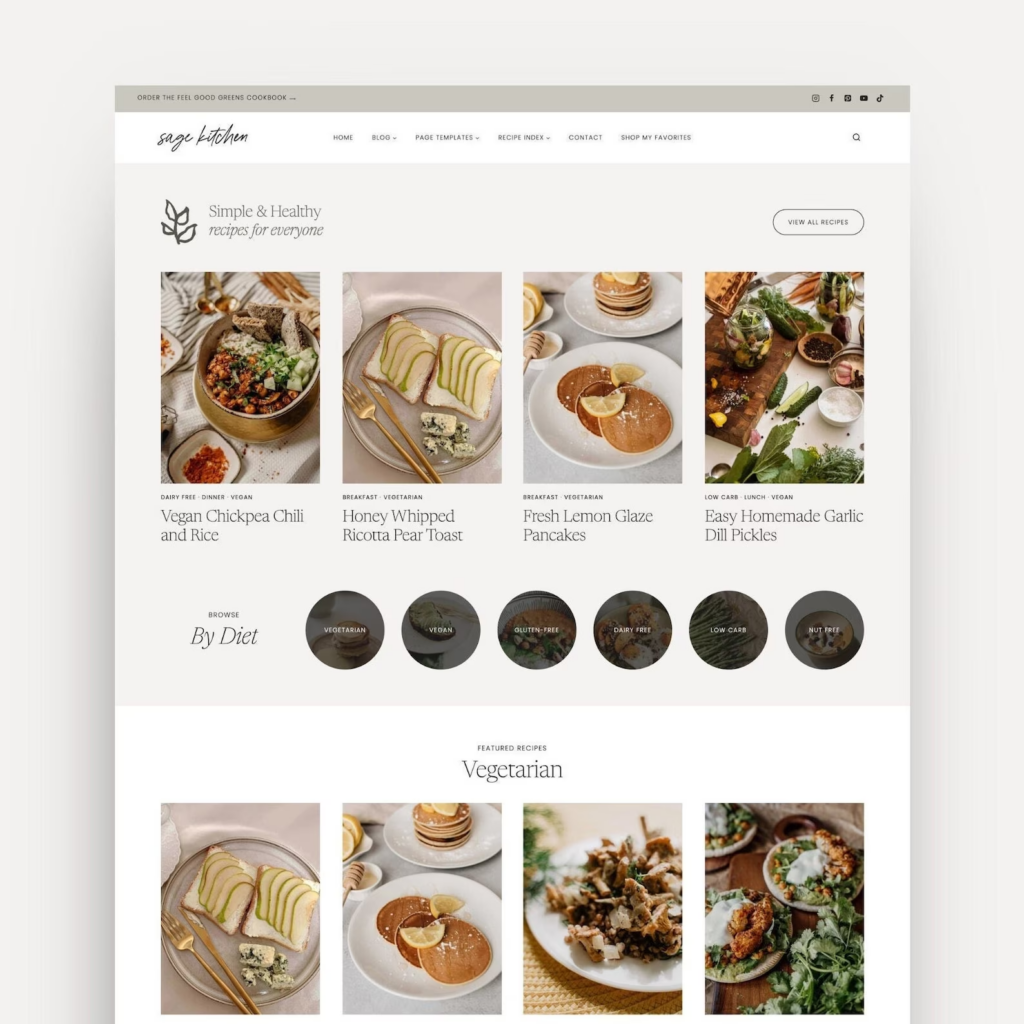
They have a bunch of other themes for a women’s lifestyle blog that I am obsessed with, too. And they’re all super high quality.
Once you purchase your theme, they will send you step-by-step, super easy to follow instructions on setting it up in your WordPress dashboard.
Not to mention, they have exceptional customer service so you can get help installing your theme if you need it.
Once you are in the theme customizer, all of the sudden there are a million decisions to make… What logo to use, what color scheme, etc.
Unless you have branding or design experience, I highly highly recommend Canva to help with this. Canva pro has a ton of pre-made logos and branding kits you can use for your blog that will make it look super professional.
They even offer a free trial, so you might be able to get some branding materials without paying for a subscription. I am a Canva super-fan and I use it for everything so I highly recommend keeping it, but you don’t have to!
If you want to spend a bit of extra time on this step to create a nice logo (this part is so fun!) Follow these steps:
Click this link to browse all the available Canva logo templates.
(Keeping in mind they are all fully customizable)

Once you find one you like, click on it and select “Use this template.” I am going to use this “Beige Classic Business Coach Brand Board” as an example

Then Canva will have you create an account and start a free trial. Click on your preferred login method.


Enter your payment info and click “Get your free trial”. Remember you won’t be billed right away. You can cancel your subscription immediately and keep using the free trial so you don’t forget!

Then Canva will have you select some goals. It doesn’t really matter what you pick here. Select some and click “Next”

Then click “Got it”

You should be directed back to the template you previously selected. Now, click “Customize this template”

Then, you will be in the drag and drop editor! From here, you can edit your design, choose a different template, and more. Everything is drag and drop and I find it super easy to use.
Here, I’ve updated the logo in the template to work for my Lifestyle blog. Now, I want to export just the logo. I’ve selected the logo by clicking and dragging.
Then, click “download selection”

Make sure PNG and “Transparent background” are both selected, and then click “Download”. This will download the logo into your download folder on your computer

I’m also going to customize these colors because I would like to use the same ones on my blog. More on how to use these in your blog next.

Things I recommend customizing in your theme:
Ok, once you’ve customized your brand kit in Canva and downloaded your logo (or created your own), you have everything you need to customize your blog theme! Let’s get back to the theme customizer where we were earlier.
On the left side, you’ll see everything you can customize about your new blog.
Here are the sections I would recommend you customize in your theme for an ultra-professional looking blog:
If you want to add any colors besides the default, I would just recommend sticking to pretty neutral with just 1-2 accent colors if any. You want your blog content to stand out, not the site design.
I am going to change these colors to the same ones in my Canva brand kit using the 6 digit hex codes (ex. #CCC969)

Add the logo you just created somewhere in the navigation of your site. Make sure your logo is not too large that it takes up a ton of screen space, or too small people can’t read it.
You’ll be able to upload this from your computer.

Upload a favicon: this can be an icon or simple graphic you find in Canva. It is what will show up in search results and tabs where your website is open. A tiny detail but goes a long way for professionalism!
To make mine in Canva, I create a design that is 512px by 512px and selected some cute, simple graphics.
Then, I exported it as a PNG with a transparent background.


Then I uploaded this in my theme customizer.

And now the tab for my site looks super cute! It’s the little things 😊

We’ll come back to it in a bit, but feel free to get a head start! This is where we will add links for people to navigate our new blog.
Anything else you want to customize!
There are plenty of other things to update like adding links to your social media, customizing the way your posts look, and more! Feel free to spend some time customizing & exploring.
But you really want to do that on your own once you have some content so you can see what it will actually look like. These basics are good for now.
That’s it for today! After you’ve done all this customization, make sure you review your blog to make sure everything looks good and correct any issue.
Personally, I think customizing your blog is one of the most fun parts. You can always come back and make more changes later, but remember, sometimes simpler is better!

Tomorrow, we will start creating some pages on your blog that you should publish before you start creating content. Everything you’ve done to day will make the pages automatically look nice on your website, so you can just focus on the content.